
How to create domain redirection on Cloudflare
Introduction
Performing domain redirection can be necessary for some purposes, for example, redirecting traffic that goes to an old domain to a new domain. Or redirecting from a main domain to a subdomain and others.
Whatever the reason, it is possible to redirect from https://url1.com to https://url2.com through Cloudflare.
Cloudflare, in a very summarized way, is an intermediary platform between websites, servers, and visitors; with it, you can manage your domain by providing several tools such as protection against DDoS attacks, accelerating loading with CDN, and much more.
Your domain can be purchased on any platform and can be managed by Cloudflare. This can be advantageous because usually domain providers might not have all the functionalities that exist in Cloudflare.
Add domain to be managed on Cloudflare
If the domain is not yet being managed by Cloudflare, it is possible to do this by replacing the domain's hosting servers at the place where you bought it.
Add a new site within Cloudflare with your domain; upon adding, you will be able to see Cloudflare's Nameservers.
Cloudflare provides the nameservers to be placed directly at the place where the domain was purchased. Like, for example, Cloudflare's nameservers:
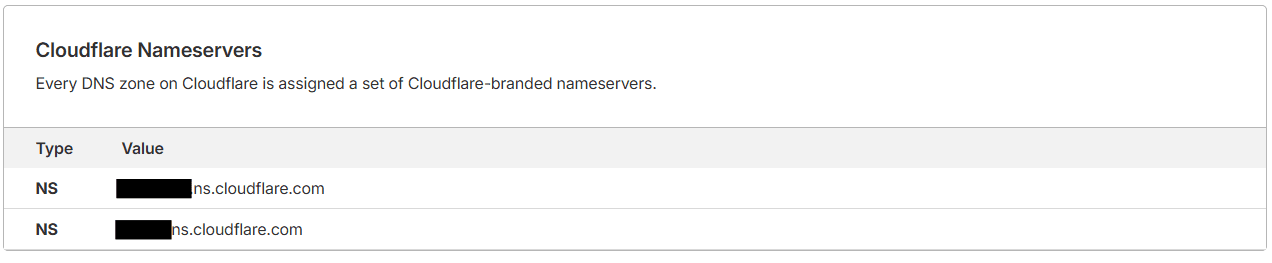
To see the Nameservers, access Domain > DNS > Records.
And inside the domain provider, add these nameservers in the indicated location.
After doing this step, the domain will propagate to be used on the new server; this step may take time.
It is possible to use the website https://dnschecker.org/ to verify if it has already propagated; enter the domain name, select the NS option, and click search; when it propagates, the Cloudflare Nameserver address will appear.
Configure redirection
To configure the redirection, go to Select the domain > Rules > Overview > Create Rule, click the button and select the first option Redirect Rule. The form below will open.
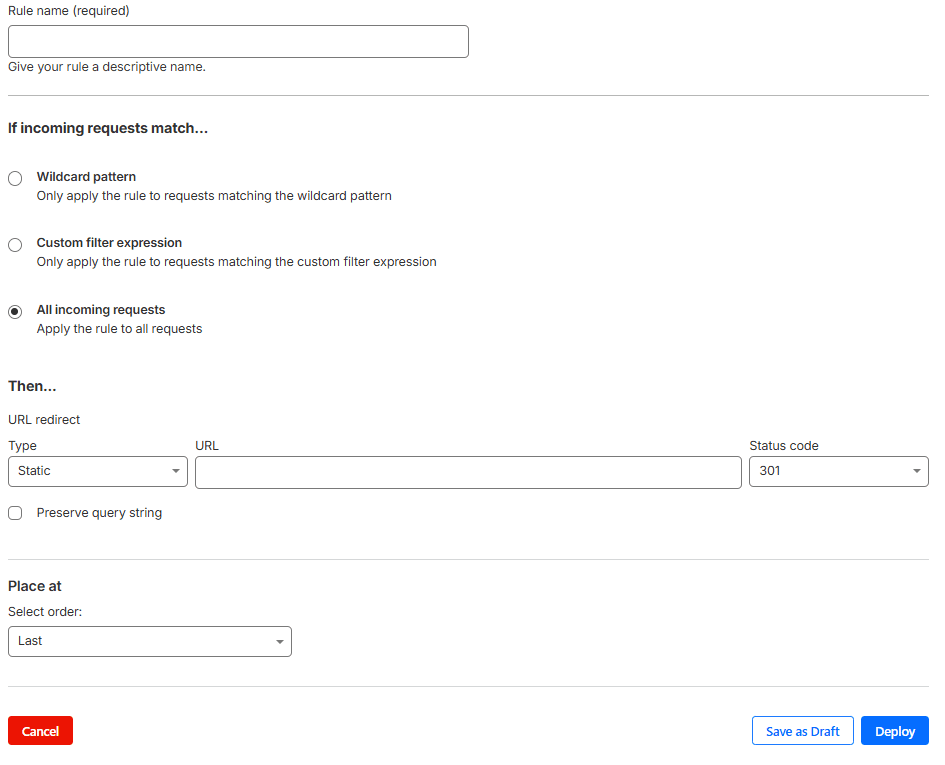
Give a clear name to the rule, because this is the name that appears in the list and allows it to be easily identified.
To redirect, it will show 3 options: Wildcard pattern, Custom filter expression, or All incoming requests.
Wildcard pattern: it is possible to use the asterisk as a special character and the requests that enter the rule will redirect; for example: *.yourdomain.com/* redirects any subdomain (ex: blog.yourdomain.com/anything) to a fixed destination.
Custom filter expression: used when you want to create more advanced redirection rules, such as creating rules with regular expressions based on the route path, and everything that fits this rule will redirect to a fixed destination.
And All incoming requests redirects everything that goes to a specific address to another specific address; for example: From https://url1.com to https://url2.com.
Select the option that best fits the occasion.
Below, inform exactly to which URL it will redirect, the redirection code, keep the Preserve query string option checked if you want to keep any parameter in the URL like UTM=123.
With everything configured, you can save and the redirection rule will be working.
Conclusion
This configuration can be useful depending on the case and the business rule you need; doing it through Cloudflare is a simple way to configure this redirection.
If you have any suggestions for improvement in this article, contact me on LinkedIn :)